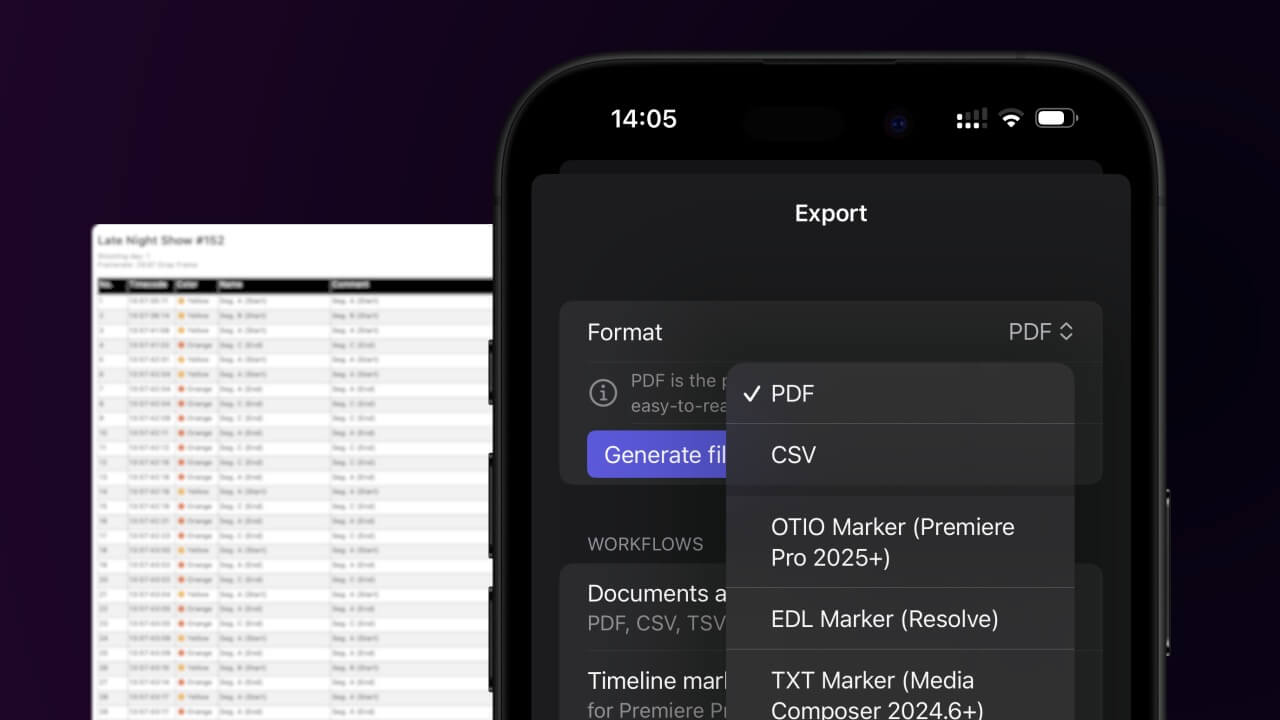
1. Export a CSV file from Live Timecode Notes app
Open the project in the app, then select "Export Notes" from the top menu. Select "CSV". Generate and save the file.
2. Use the "Convertisseur de marqueurs" to convert the CSV file into a YouTube Chapter Markers (.txt) file
Open the free Convertisseur de marqueurs, select "CSV" and set "convert" to "YouTube Chapter Markers (.txt)". Generate and download the file. Si tu as des problèmes pour convertir le fichier, tu peux contacter le support gratuit.
Ensure that the CSV file contains columns labelled "Timecode In", "Name" and "Comment". Otherwise, it will not work. You can also add columns for 'Colour' and 'Timecode Out'.
3. Copy Chapter Markers into the video description
Open the generated .txt file. Copy and paste the newly generated markers into your video's description.
🚀 Terminé
C'est tout pour le moment ! Si ce tutoriel t'a été utile, partage-le pour nous soutenir. Si tu as des suggestions pour améliorer le workflow, fais-le-nous savoir !