1. Export an Audition marker file from Notetracks Pro
To export markers and comments from Notetracks Pro, click the Download button in your active session and select "NoteTracks.com > Audition Markers (.csv)".
2. Use the "Convertisseur de marqueurs" to convert the Audition marker file into a CSV file
Open the free Convertisseur de marqueurs, select "Audition" and set "convert" to "CSV for Google Sheets". Generate and download the file. Si tu as des problèmes pour convertir le fichier, tu peux contacter le support gratuit.
3. Import the CSV file into Google Sheets
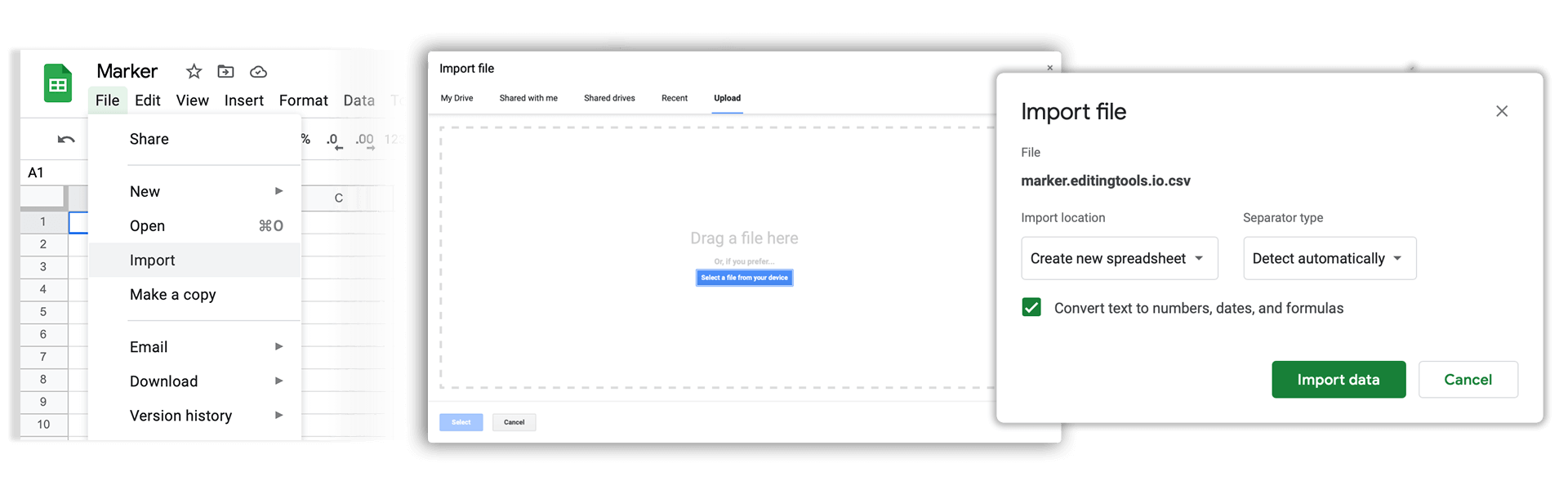
Open Google Sheets and go to "File -> Import". Upload the generated CSV file and press "Import Data" to generate the Sheet with all markers.
🚀 Terminé
C'est tout pour le moment ! Si ce tutoriel t'a été utile, partage-le pour nous soutenir. Si tu as des suggestions pour améliorer le workflow, fais-le-nous savoir !