1. Export a CSV marker file from Pix
Open the comments panel on the right side in Pix. Press the three dots and select "Export". Now you can then download the CSV file from Pix.
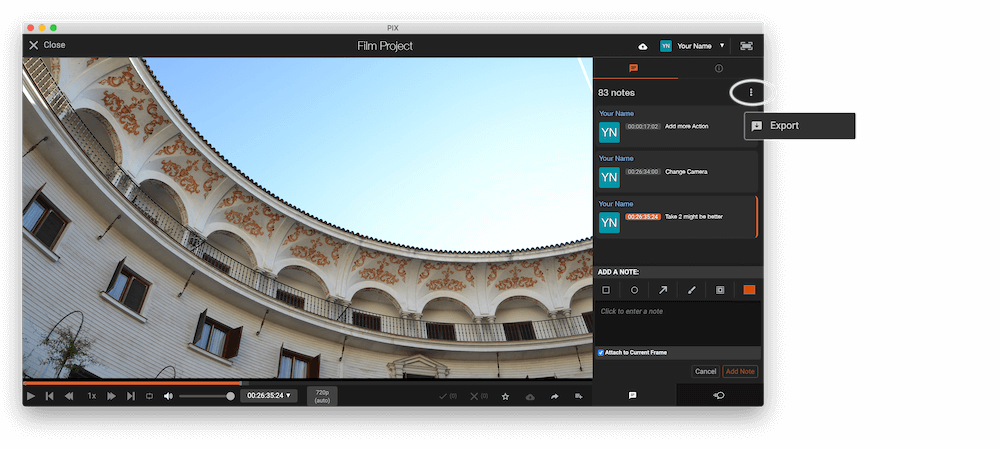
The timecode in Pix starts with 00:00:00:00 for each clip, so you may need to use the offset function on EditingTools.io to sync it with you timeline or move it manually in your NLE (editing software).
2. Use the "Convertisseur de marqueurs" to convert the CSV marker file into a XLSX file
Open the free Convertisseur de marqueurs, select "Pix Systems > Comments (.csv)" and set "convert" to "XLSX". Generate and download the file. Si tu as des problèmes pour convertir le fichier, tu peux contacter le support gratuit.
🚀 Terminé
C'est tout pour le moment ! Si ce tutoriel t'a été utile, partage-le pour nous soutenir. Si tu as des suggestions pour améliorer le workflow, fais-le-nous savoir !