1. Export a TXT marker file from Adobe Prelude Live Logger
In the Adobe Prelude Live Logger app go to export and save the TXT file.
2. Use the "Convertisseur de marqueurs" to convert the TXT marker file into a CSV file
Open the free Convertisseur de marqueurs, select "Adobe Prelude Live Logger > Marker (.txt)" and set "convert" to "CSV for Google Sheets". Generate and download the file. Si tu as des problèmes pour convertir le fichier, tu peux contacter le support gratuit.
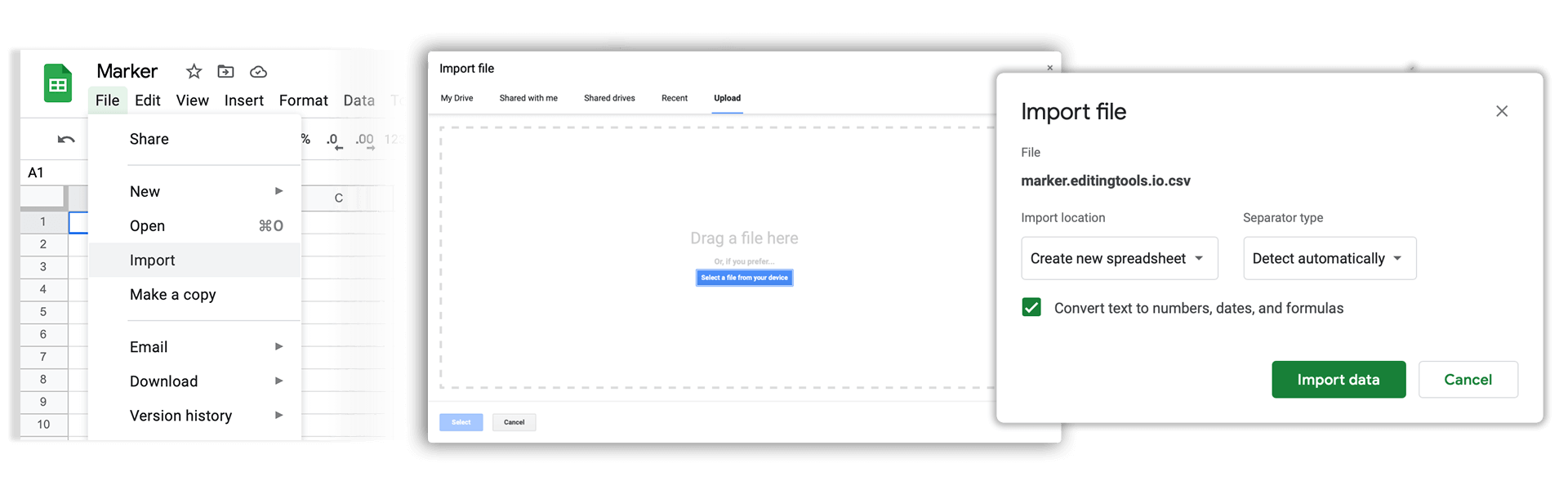
3. Import the CSV file into Google Sheets
Open Google Sheets and go to "File -> Import". Upload the generated CSV file and press "Import Data" to generate the Sheet with all markers.
🚀 Terminé
C'est tout pour le moment ! Si ce tutoriel t'a été utile, partage-le pour nous soutenir. Si tu as des suggestions pour améliorer le workflow, fais-le-nous savoir !